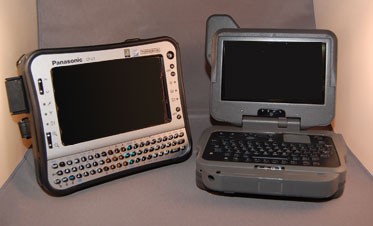
I've been trying and testing two ruggedized mini-computers for the past few weeks: the MR-1 from General Dynamics-Itronix and the U1 from Panasonic Toughbook. Both are marketed for similar applications–full computing power in a small package, with shock- and weather-resistant features to keep them running under harsh conditions. The law enforcement market is one of these, but neither of these machines would be completely at home in a patrol car.
These computers are intended to go where computers haven't been able to go before–on bicycles and motorcycles, in a tactical officer's thigh pocket, or in the hands of a cop running a checkpoint. The displays are small, as are the keyboards, and you aren't going to want to write your memoirs on either one. But, if you've been limiting the kind of work an officer can do while using non-standard transportation, either of these may be a solution for you.
General Dynamics-Itronix GoBook MR-1
Just picking up this computer gives an impression of "solid." It seems much heavier than the one ounce it has over the U1 (the MR-1 weighs 2.4 lbs.–the U1, 2.3 lbs.). The form factor is that of a standard laptop clamshell design, although it's considerably smaller. The clamshell protects the display when the computer isn't in use. The hinge is sturdy and will support the display at any angle from fully closed to 180 degrees open. The model I was furnished had an integral GPS antenna that gave the display case a small protrusion.
When open, the keyboard layout is the standard QWERTY, although the key pitch (distance between keys) is a lot less. Standard key pitch is 19mm, center to center. The MR-1's key pitch is 9mm. The keyboard is a solid membrane, with each key having a distinct "click" to it. You can type on it, but it's difficult to use more than the index fingers of each hand.
At the top of the keyboard are left and right mouse buttons, a touchpad, and a rubber button "joystick." You can move the cursor around the screen with the touchpad or the joystick. The display itself is also touch-sensitive, so you can position the cursor by dragging it across the screen with your finger, too. Touch any key and the entire keyboard illuminates with a backlight. It's a nice balance between being enough to see what you're doing and not going night-blind.
Below the spacebar are some non-standard buttons for zoom, brightness, switching displays and so on. Two keys are there for custom programming, so you can bring up any application or command with a single keypress. It's very easy to find everything you would find on a standard keyboard.
There aren't a lot of external ports and inputs. There's a single USB port, a docking connector, and a mic/speaker connection, and they're all on the back. The MR-1 has optional "slices" available that connect to the chassis to provide legacy ports and communications interfaces. The only optical drive you're going to get will be external, so forget about watching Netflix DVDs on the night shift.
The display is highly visible, even in bright sunlight. This feature distinguishes the GoBooks from most other computers in the market, as their DynaVue technology is arguably the best in the industry for bright light conditions.
In my view, the single biggest limitation of the MR-1 is that it's difficult to operate if you don't have anything to set it down on. It's not comfortable to use when standing up, holding the computer with one hand while typing with the other. If there was a docking station or some other mount provided while the computer was in use, it would do fine for simple applications like mapping, data communications, running wants and license inquiries, and so on. If you have to use it while standing, it's going to get tiresome fast.
Panasonic Toughbook U1
The Toughbook line is well-known as one of the standards of the industry. The U1 is a departure from their standard form factor, as it's not a clamshell laptop and it's not a tablet. Like a tablet computer, the keyboard, display and most of the controls are on one side of the machine. The opposite side has (as options) a fingerprint reader, camera with LED illuminator, and a barcode reader. It also has a fake leather handgrip that runs across the back of the case horizontally, to make it easier to hold onto the device when one hand comes in from underneath. More about that later.
The display of the U1 is 5.6 inches diagonally, same as the MR-1. For some reason, the display on the U1 looks bigger. The resolution of the display is also the same as the MR-1, 1024×600. The display is touch-sensitive, with a plastic stylus provided. The stylus resides in a silo on either side of the display–a nice option for lefties.
The keyboard is decidedly non-standard. There are three rows of keys, 21, 20 and 20 keys wide. The standard QWERTY arrangement is followed from the outer edges, but in the middle there are dedicated number and arrow keys. Most keys have a dual function denoted by a keyboard icon, and the control, alt (two of these), shift and function keys have tiny LEDs that illuminate when they're pressed and stay active for one keypress. If you needed to key in control-A, you would press the control key, then the "A" key, without having to hold the control key down.
The keyboard arrangement works reasonably well when the U1 is held with both hands on either side of the keyboard. The thumbs are in position to reach all of the keys, and as anyone who has used text messaging from a cell phone knows, typing can go pretty fast. The arrangement takes some getting used to, but it works. At about 7mm, the key pitch is even smaller than the MR-1. The keyboard is illuminated.
On either side of the display are some LEDs to indicate power and battery status, whether there is a wireless connection, disk activity and so on. Two rocker switches on the left side move the display up or down one screen at a time, and can zoom in or out. You'll need that zoom–these displays are pretty small for standard fonts. On the right side is the power switch, and four programmable buttons for applications or commands. It is also possible to set up hot keys to run specific applications or commands, so long as those key combinations haven't already been reserved by Windows.
Note that I haven't mentioned mouse buttons–there aren't any. To start an application that isn't linked to one of the programmable hardware buttons, you either use the stylus to tap on the display and navigate to what you want, or use the Windows and arrow keys. I didn't like this. I want to use a keyboard or a stylus–not both. Adding mouse buttons to either side of the display would have been a peachy idea.
The opposite side of the evaluation sample I received had a fingerprint reader and a camera. Fingerprint readers are great for situations where a computer has to be shared between users, as there is no need to change passwords every so often. You scan your finger at the start of a session and get loaded into your own desktop. Note that this reader isn't suited for scanning suspect prints in the field–the software and scanner aren't sophisticated enough for that.
The camera didn't look like a camera, and I found it almost by accident. There was no mention of it in the included documentation. I try to evaluate devices like these from the perspective of a deputy sheriff on the midnight shift in Upper Pothole, Kansas, who has no access to technical assistance beyond what is in the box or loaded onto the computer. I was disappointed that there was no mention of this feature in the onboard user's manual (which is otherwise quite comprehensive).
The camera could be pretty useful, once the user figures out how to operate it. When holding the U1 with both hands on the sides, the camera is pointed in the opposite direction of the display. If an officer wanted to take a quick ID photo, she could just hold up the computer , activate the white LEDs on either side of the lens to frame the photo, and click away. But unless the officer has first programmed two of the buttons to turn on the LEDs and trip the shutter, the only way to take a picture is to bring up one application to light the LEDs and tap the right spot on the display with the stylus, and then go to another application and tap the camera icon there to take the picture.
There are two orange buttons on the back side of the computer (the same side as the camera), positioned right where my index fingers went when I was holding the computer by either side. The documentation doesn't mention those buttons at all. A message to my contact at Panasonic yielded the information that those buttons are to control a bar code reader that wasn't installed on my evaluation model. Having some way to assign those buttons to run the LED illuminator and camera would be a decided improvement.
Throughout all these comments on the U1, I've been suggesting that the computer seems to have been designed to be held by the sides, while the thumbs work the keyboard and other control buttons. Now and again, one might have to use one hand to pull out the stylus and do something on the display, but this could be done while continuing to hold the computer by the side with the opposite hand. Given this, I truly do not understand why the hand grip on the back of the computer is oriented horizontally, so that a hand can fit into it only if the machine is grasped from the top or bottom. The hand grip is a fine idea–just turn it 90 degrees.
Comparisons
Both machines are well-built to the same MIL-SPEC standards, and I expect either one would hold up to the abuse that is common when supposedly durable gear is deployed to cops. Although I hesitate to compare stability between two computers, the U1 locked up on me far more often than did the MR-1. I wasn't running any advanced applications that would put a big load on the processors, but the U1 just didn't perform as reliably as the MR-1. Both machines were running Windows XP. The MR-1 came with a 75 GB drive with two partitions. The U1 had a 16 GB drive that I suspect was solid state memory. That wouldn't provide a lot of room for applications or data storage.
The U1 is a good choice for use when the user is going to be on foot. Holding the machine with both hands on either side, it's possible to input and read a lot of information so long as the application is optimized for this setup. If the application requires a lot of transitioning between the mouse/stylus and the keyboard, it's going to be frustrating. Implementing the design changes I've suggested here would make this a much more user-friendly machine, but I don't see a big advantage in fixing the computer into a mount or docking station. The tiny keyboard and non-standard layout are going to be no easier to use.
The MR-1 would be a great computer to give to a bike or motor officer, as long as they have a place to mount it. It can do everything the full-size computers in the cars can do with very few transition problems. The form factor does not make this an easy computer to use while standing and holding the machine with one hand while the other types.
If you're reading this and trying to decide which to buy, remember the Ford-Chevy problem. Either vehicle will get you to work, bring you home, and fetch the kids to Grandma's at Thanksgiving. The biggest factor is which one you prefer. See if you can get an evaluation model of each computer (or another model/brand that may fit your needs) and give them to the people who are going to use them. Talk to your technical folks and ensure the hardware will work with the infrastructure you have in place. These are tools, nothing more, and you have a responsibility to get the best tools for the job you do.